
Special Enrollment allows administrators to open an enrollment period for an employee(s) when special circumstances apply.
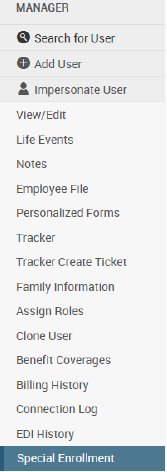
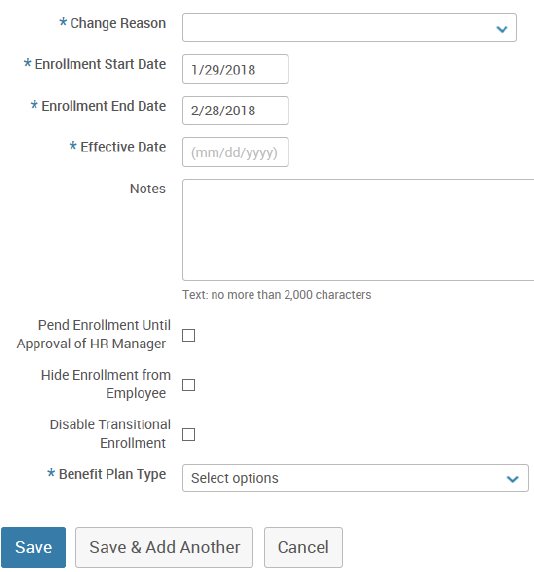
To create a Special enrollment for a user, go to Admin >> User Admin >> Special Enrollment. Select the appropriate Change Reason from the dropdown. It is important to note that by selecting, “New Hire Enrollment,” for example, as the Change Reason, the system will not follow the new hire rules.
Enrollment Start Date and Enrollment End Date will control the dates the window will be open.
Effective date will be the date all elections made within the special enrollment will be effective.
Notes is not a required field, however it is highly encouraged that you detail the specific reasons why you are opening a special enrollment. This will assist in any research in the future.
- Pend Enrollment Until Approval of HR Manager will pend all elections until they are approved.
- Hide Enrollment from Employee will hide the enrollment from the employee’s homepage. The event will only be accessible by the administrator.
- Select all benefit plan types you would like to appear in the event.
- Once the enrollment is saved, you can enter the enrollment via the administrator’s view by clicking on Go to Enrollment.