
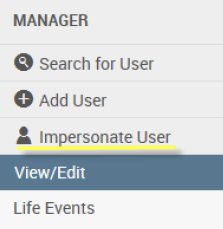
Impersonate User will allow you to view an employee’s account exactly as they would see the page if they logged in as themselves. You will have full access to all the site functions that an employee would have including running and saving elections in election events, beginning life events, making any allowable address or demographic changes, etc.
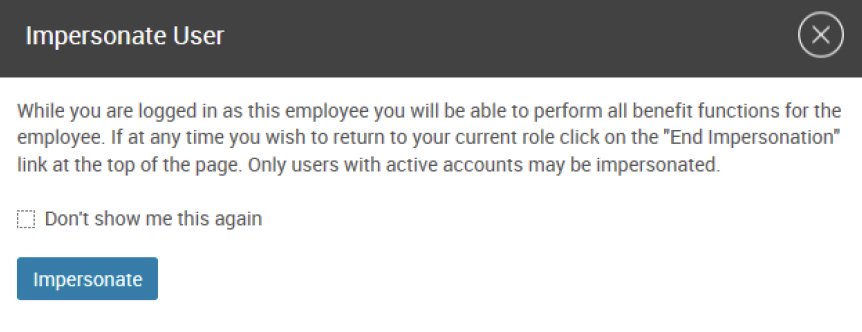
To begin impersonating a user, click the Impersonate button. The first time you impersonate, you will receive the pop up message below. You can click the checkbox to stop the message from appearing again.
To end the impersonation and return to the administrator’s view, click the End Impersonation button at the top of the screen.

Any changes that are saved while impersonating will be saved under the administrator’s name.