
Reports can also be set to run on regular schedules. To schedule a recurring report, first find the report on the Reports Library page under Reports >> Report Center. Click the Create Schedule link for the desired report to create a new schedule or Edit Schedule if one already exists.

Clicking Create/Edit Schedule triggers a popup window, where administrators can quickly enter or update start and end dates, frequency, and to which email(s) they wish to receive confirmation that the report has completed.
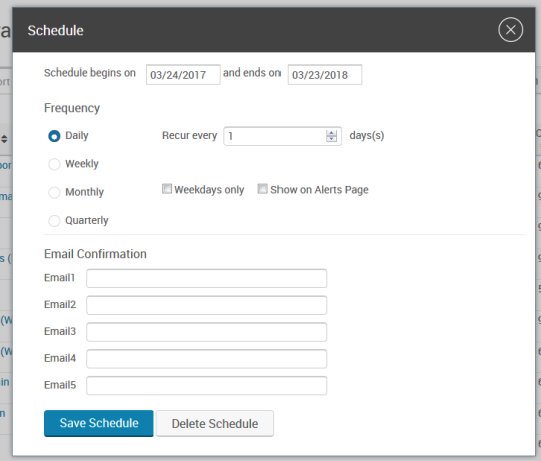
Select how often the report should run. Reports can be run daily, weekly, monthly, and quarterly. After configuring how frequently the report should recur, enter dates in the Schedule begins on and ends on fields to configure when the recurrence will begin and end. By default, the schedule will begin on tomorrow’s date and end a year from today.
Alerts can also be generated for some reports to notify administrators that the report is available. If the report supports alerts, check the Show on Alerts page option. The system can notify up to five administrators by email that scheduled reports are ready to be viewed. In order to send notifications to an administrator, enter the administrator’s email address in one of the five email fields.
Click the Save Schedule button when finished. Once a scheduled report is available, administrators can access it from the Offline Reports page under Reports >> Report Center >> Offline Reports.