
This page can be used to manage an employee’s history of pending elections. To review pending enrollments, go to Admin >> User Admin >> Benefit Coverages >> Pending Enrollments. All elections made by an employee that are currently pending or were pended at one point are displayed. Pending credits and pending unverified dependent enrollments will also be displayed. Below are the scenarios where an enrollment is pended
- All Life Events – when an employee or administrator processes a life event, the coverages will pend for approval
- Special Enrollments – special enrollments will pend only if you check ‘Pend Enrollment Until Approval of HR Manager’ when creating the enrollment
- Company Wide Enrollment – open enrollment coverages will only pend only if you check ‘Pend Enrollment Until Approval of HR Manager’ when creating the enrollment
- EOI – Any coverage an employee or administrator elects over the plan’s Guaranteed Issue will pend for Evidence of Insurability
- Any enrollment rule that is set to pending will pend coverages no matter who is processing the enrollment
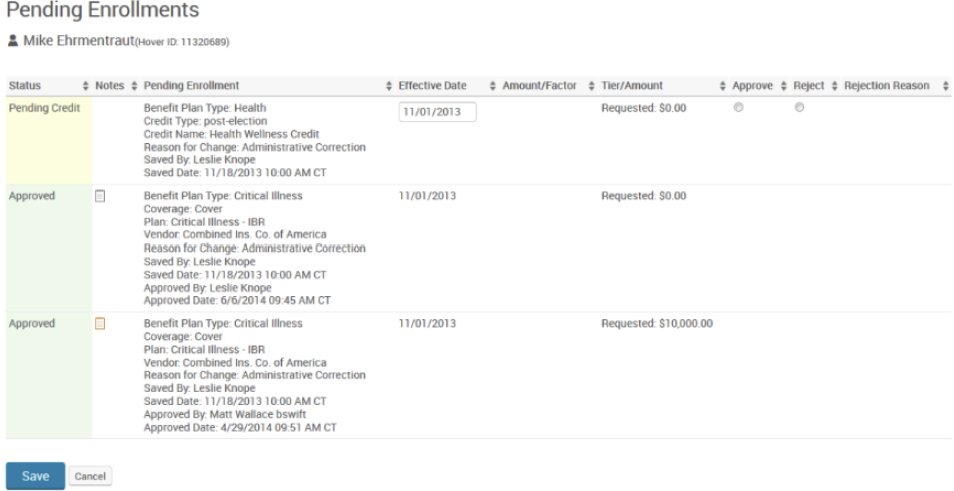
The color-coded Status column will display whether each election is still pending or has been approved or rejected. If the election is pending, the column will also note whether the election is pending because of EOI requirements or not.
The Notes column will allow administrators to enter notes for each record. Notes on an election made using a Pending Report will also appear in this column. To enter a note, click on the notepad icon. Entries with saved notes will have yellow icons; entries with no saved notes will have white icons.
The Pending Enrollment column will display the plan type, plan name and vendor, and reason for change. It will also display the name of the user who made the election and the time at which the election was made.
The Effective Date column can be used to view and edit the effective date of the pending enrollment.
If the plan determines coverage by factor, the Amount/Factor column will display the factor of coverage elected. If the plan allows the employee or administrator to elect a flat amount, the Tier/Amount column will display both the requested and the current amount of coverage. If the election has been approved, the column will display the requested and approved amounts.
If the election is still pending, the Approve and Reject columns will contain radio buttons that will allow the administrator to approve or reject the election. The administrator will also be able to adjust the amount elected in the Tier/Amount or Amount/Factor columns.
The Rejection Reason column can be used to note the reason for rejection. The available reasons are:
- Declined by Underwriting
- Closed – No Medical Underwriting Needed
- Closed – Employee or employer Request
- Closed – Lack of response
To specify the rejection reason, select the desired option from the dropdown menu.

For enrollments that are pending due to unverified dependents, there will be at least two records on the Pending Enrollments page: one for the employee, and one for each unverified dependent. Only records for unverified dependents can be approved or rejected, at which point the dependent’s record will no longer appear on the Pending Enrollments page. If all pending unverified dependents have been approved or rejected, the employee’s pending unverified dependent record will also no longer appear on the Pending Enrollments page.