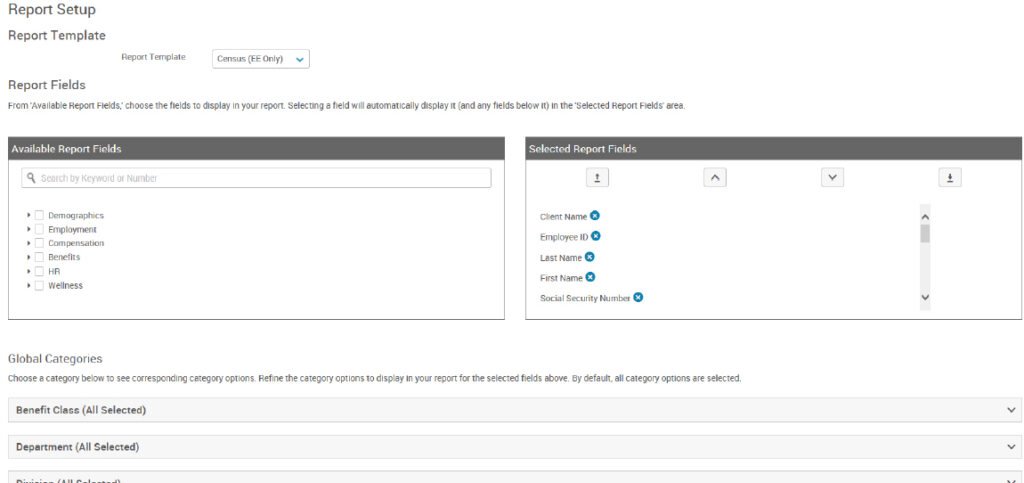
Once you’ve selected a report, it will open with the default selections chosen for that template. You can run the report as-is, or you can customize the report to pull additional information, or only pull results that meet specific criteria.
Customizing the fields that pull into your report
Some reports allow administrators to customize which fields are included in the report. Standard reports have a number of fields already selected by default, but administrators can add fields, remove fields, or change the order in which fields appear. Once the report template has been selected, administrators can customize the report.
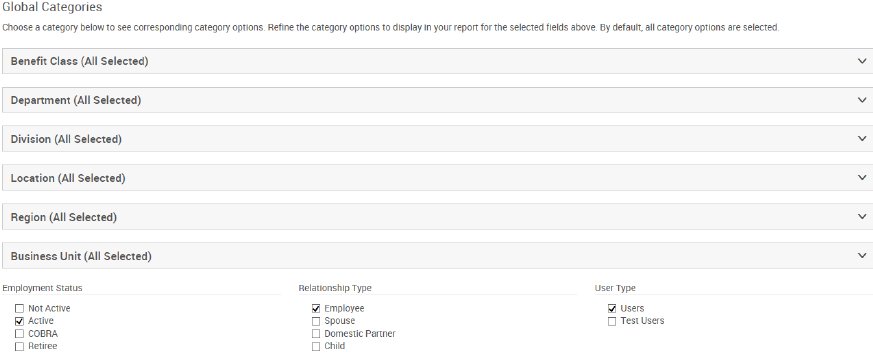
By default, reports will pull all data that is applicable to the report you’ve selected (i.e. By default, a benefit report will pull all benefit elections for all benefit plan types, and all employees). If you would like to limit the results of your report, there are a few ways you can specify limiting criteria.
Limit by Benefit Class, Benefit Plan, or other data elements by clicking on the data element and selecting the items you would like to limit to. Note that not all data elements displayed here may be applicable to your client.
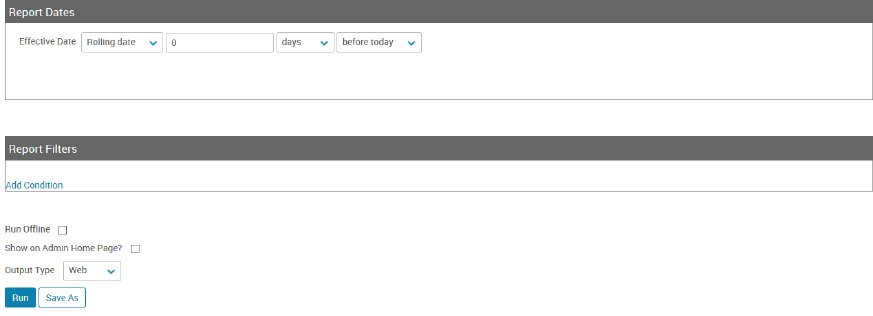
Customize what date your report pulls data as of. Some reports also allow you to specify a date range. Add other custom filters by clicking Add Condition. You can add a custom filter for any of the data elements you have selected to show in your report. If you add multiple filters, only results that match all filters you’ve added will be returned.