
Method 1
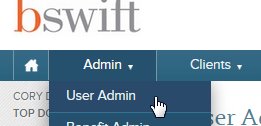
- In the Navigation Bar, click on Admin, then User Admin
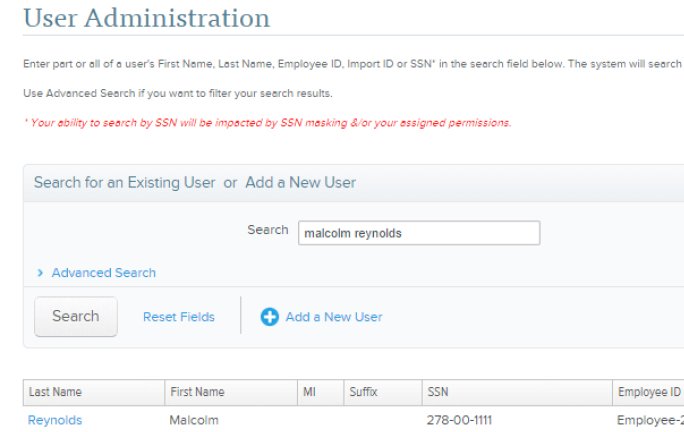
- Search bar: enter your search criteria
Method 2
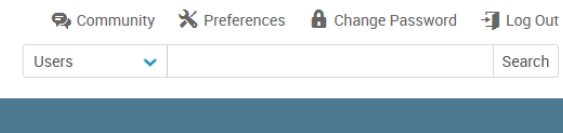
You can also perform a user search using the search field in the top right of the page.
About searches
The following fields will be searched:
- Last Name
- First Name
- Middle Initial
- Social Security Number Employee ID Employment Status Benefit Class
- Import ID
Info
You are able to search using partial data. If, for example, you don’t know how to spell an employee’s full name, you can search by partial names.
| Data entered | Return results |
|---|---|
| Mary | Any records that include Mary in any of the fields |
| Jones | Any records that include Jones in any of the fields |
| M Jones | Any records that include a first name beginning with M and a last name including Jones |
| Ma Jo | Any records that include a first name beginning with Ma and a last name including Jo |
| J, Mary | Any records that include a last name beginning with J and a first name including Mary |
| Jones, M | Any records that include a last name of Jones and a first name beginning with M |
| 12345 | Any records that include the numbers 12345 and any of the fields |
Click on the last name of the employee to open the employee’s account.

Advanced search
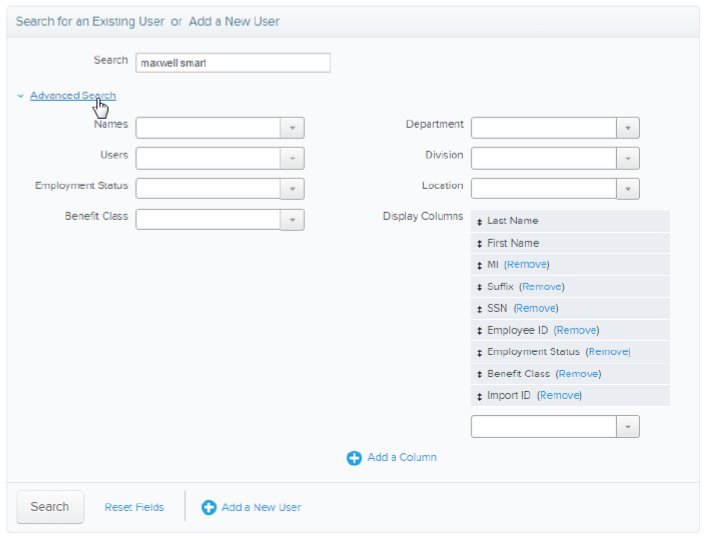
Clicking on Advanced Search will allow you to specify a variety of other criteria in your search.
| Criteria | Description |
|---|---|
| Users | By default, Search will retrieve employees and test accounts. You may limit the results to employees only (exclude test accounts), test accounts only, or add dependents to your search. |
| Employment Status, Benefit Class, Department, Division, Location | Retrieves only employees who have the values you select in each field. |
| Display Columns | Allows you to customize what columns are displayed in your search. |